Disclaimer: Any actions you take from reading this post are at your own risk. This is not meant to be an exact guide on best practice, rather than my own experience.
Context
By default, Jekyll requires your posts to contain the date in the file name, which publishes posts at /(year)/(month)/(day)/title
When I created my Jekyll site, I wanted to avoid this requirement. My goal for this site is to focus on evergreen content, which makes the published date mostly irrelevant.
How do I remove this?
I found some plugins that remove this requirement, but wanted to avoid these to avoid any possible breaking changes in the future. From what I found, trying to do this yourself just isn’t worth it (for me at least, I chose Jekyll because it’s easy!)
The easiest way to remove the date requirement is to create a new collection to put your posts in. A collection is a group of posts, you can find more information on the Jekyll website.
Creating a collection
Firstly, you need to choose a name. I decided to be creative here and choose ‘blog’. Once you have chosen a name, you need to create a folder at the root of your site with the name of your collection. This needs to have an underscore _ before the name (eg. _blog).
Once you have created the folder, you need to update your _config.yml file:
collections:
  blog:
    output: true
    permalink: /blog/:title
YAML is quite particular about formatting, each tab is 2 spaces.
This will create your collection.
- The
blog:is the name of the collection, this must match the name of the folder - Setting
output: truewill tell Jekyll to convert your markdown files to html - The
permalinkis the URL path of your posts, you can find variables for permalinks here
Once you have created your collection, add a file and test your site locally by running bundle exec jekyll serve in a terminal and heading to http://127.0.0.1:4000/blog.
Hopefully, you should see the index of your collection here:
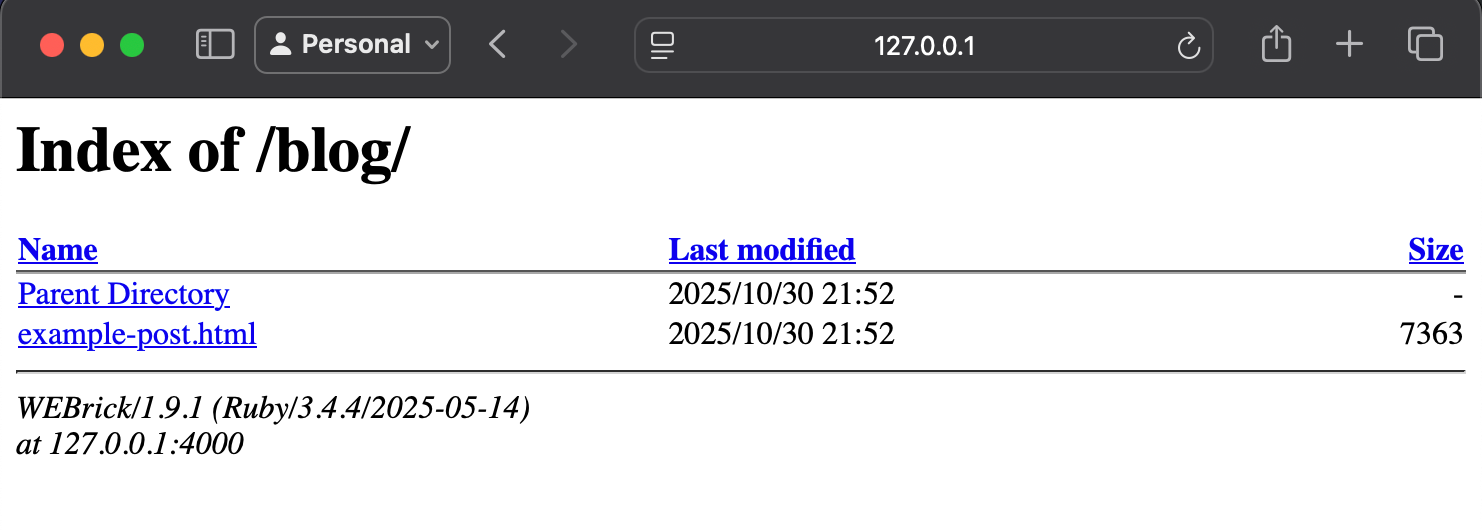
Obviously, this doesn’t look ideal. For drafts, this is probably fine (this is what I do to make sure my markdown is correct when I’m writing a post) but if this is where you’re going to be publishing your pages, you’ll probably want some kind of library page.
Updating the index page layout
To replace the default html index page, you need to create a new page to index the posts within the new collection. You could simply create a markdown file and manually link the pages, but this requires you to manually index every new post you add, which isn’t ideal.
The easiest way is to edit the current payout for the posts collection
Default
Test your site locally using bundle exec jekyll serve and look at the URL for the page that shows a list of your posts. For the default Jekyll theme (minima), this is the homepage of the site. Once you know which page, open the markdown file for that page (eg. index.markdown) and check the front matter.
For minima, this is:
---
layout: home
---
Once you know which layout you are looking for, get the default html file for this layout. To find the default layout, use the following command: bundle info --path minima (Overriding theme defaults - Jekyll)
Go to the path and copy the file that matches the layout from the pages front matter.
- Create
_layoutsat the root of your site - Copy in the file
- Copy the file to
_layouts/blog.html(optional) - Look for the section with the for loop:
{%- for post in site.posts -%} - Change
site.poststosite.blog(swapblogfor the name of your collection if you used a different name)
Bulma Clean Theme
For my site, I am using Bulma Clean theme, so I grabbed the _layouts folder from GitHub.
The default post index page for this theme is at blog/index.html. If we have a look in this file, you can see the layout is blog in the front matter:
---
layout: blog
title: Blog
subtitle: Blog sub title
---
Having the _includes folder lets us see/edit the html of the page layouts. Anything you have in this folder will overwrite the theme default. I chose to keep a copy of the original layout:
- Copy
_layouts/blog.htmlto_layouts/posts.html(optional) - Look for the following section:
{% for post in paginator.posts %} <div class="column is-12"> {% include post-card.html %} </div> {% endfor %} - Change
paginator.poststosite.blog(swapblogfor the name of your collection if you used a different name)
Creating the index page
Once you have updated blog.html, create blog.md at the root of your site. You don’t need any content on this page, as it will come automatically from the layout, but the front matter is important. For my site, I have:
---
title: All posts
layout: blog
hero_height: is-fullwidth
---